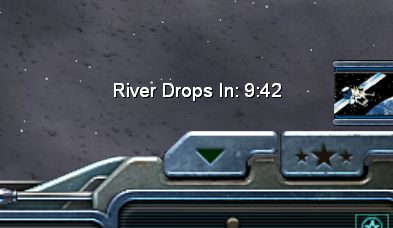
This tutorial is for Zero Hour. If you're using Generals, then the actions I use in scripts will look different. At the bottom is a screen shot of what you'll be doing. Sometimes you may see two timers, one listed on top of the other. I don't know what causes this, I've just found that it happens some times & it not.
For this tutorial, you should know how to create a simple script. If you want to keep things simple & don't want any text to show next to the countdown, then just follow the first few steps:
1) Create the script that is to show the timer.
2) Choose the action,
Scripting/Timer/Seconds countdown timer -- set & set a timer to expire.
3) Create a new action using,
Scripting/Counters/Display an individual counter to the user. In that action, choose the timer you just set to expire.
4) For now, just leave the localized string alone & don't worry about the 3 question marks that appear the beginning.
5) Create a new script with the condition of the timer expiring.
6) For the action, choose
Scripting/Counters/Hide an individual counter from the user & choose the timer you set to expire.
7) You may also want an air raid siren to go off so that you can let the player(s) know it expired. Choose the action in that script,
Multimedia/Sound Effect/Play sound effect & then for the sound affect,
AirRaidSirenThe scripts should then look like this:
*** IF ***
    True.
*** THEN ***
  Set timer 'A Timer!' to expire in 300.00 seconds.
  [???]Show 'A Timer!' with text Localized String: '???'
*** IF ***
    Timer 'A Timer!' has expired.
*** THEN ***
  Hide 'A Timer!'
  Play Sound 'AirRaidSiren'.
There, now you'll have a timer showing up that will expire. I'll leave you to whatever stuff that will happen when the timer expires. If you want text to show up next to the timer, continue on:
8) Open up Notepad & add the text to show up next to the timer with,
SCRIPT: in front of it. (This is case sensitive)
9) Under that, enclosed in quotes, type the same text again without the
SCRIPT:.
10) Then type
End under it all.
11) So in the end, it should look like this:
SCRIPT: River Drops In:
"River Drops In:"
End
12) Now save the note pad document as,
Map.str in your map folder. (Your map folder in located in, My Documents\Command and Conquer Generals (Zero Hour) Data\Maps\ There you'll see folders with the names of all your maps.)
13) Now in the world builder you'll see
SCRIPT: River Drops In: in the list of localized strings in that one action for displaying a timer. Just be sure you've allowed the world builder to load your map after doing so.
That's It! But there's some things you need to note if you're using Zero Hour & not just Generals. When you play this map online with other player that don't have the map in advance, then they'll see,
MISSING: 'SCRIPT: River Drops In:' while on your computer you'll see
River Drops In:. If they exit Zero Hour & load up the game again, then they'll see it fine.
Click to View Image91 View(s)
Edited by user
17 years ago |
Reason: Not specified